
Stuck on a reply? Just screenshot it.
Morphy reads your chat screenshot or copied text and writes three replies that fit the other person. Tap ✦ on the keyboard and one goes straight into the text field.

iPhone, iOS 17 or later / 9 languages / Screenshot images never leave your phone

Three taps to a reply
Less time staring at the screen.

Screenshot the chat
Any chat app. Take a screenshot the way you always do.
Tap ✦ “Suggest Replies”
Switch to Morphy with the globe key and tap ✦ “Suggest Replies”. The text in your screenshot is read on your phone.
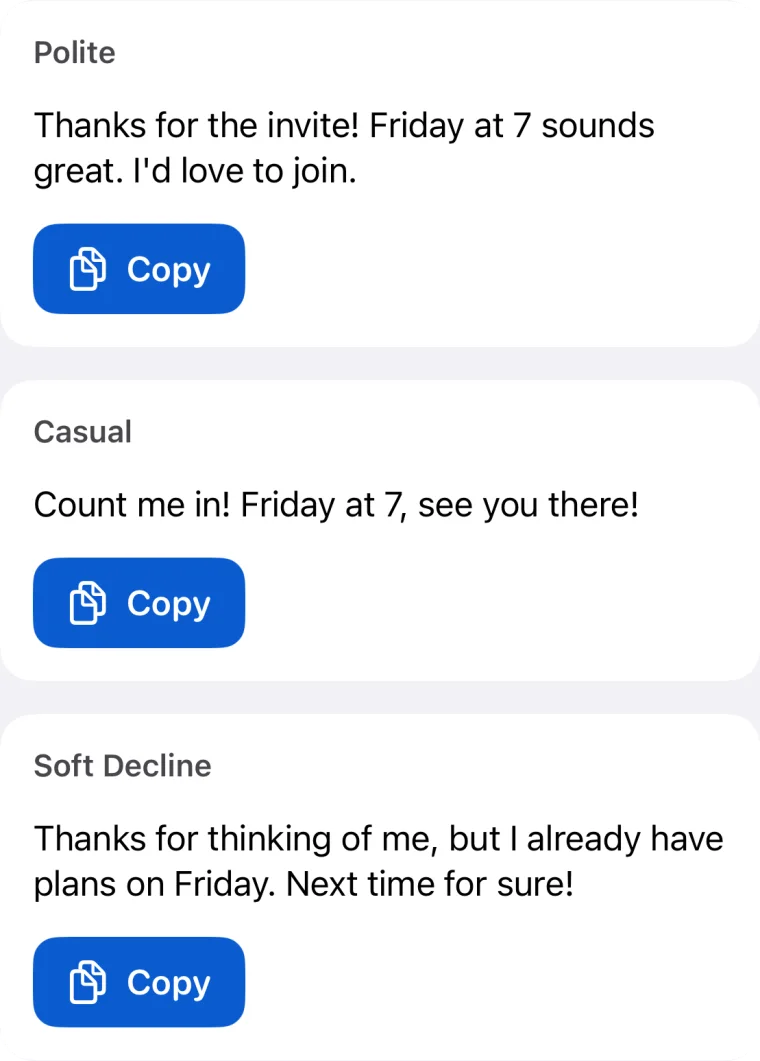
Pick one of three
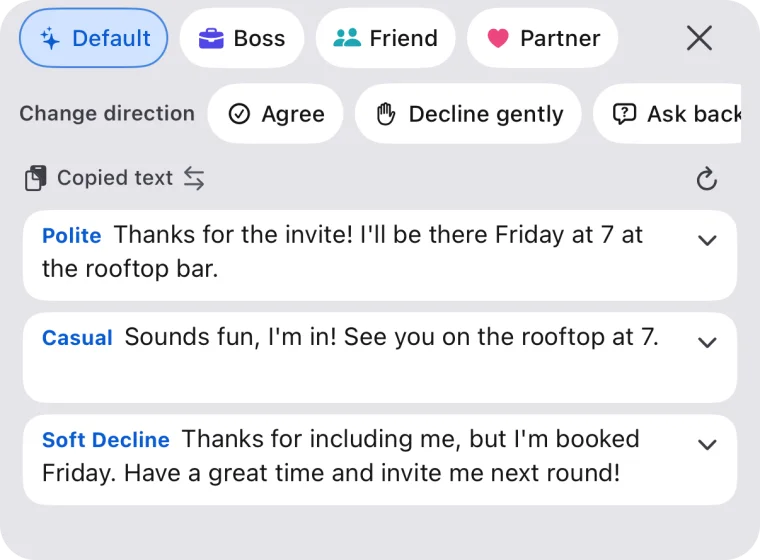
Polite, casual or a soft decline, all on one screen. Tap a reply and it is inserted for you.
What Morphy does
Everything you need to write a reply, inside your keyboard.
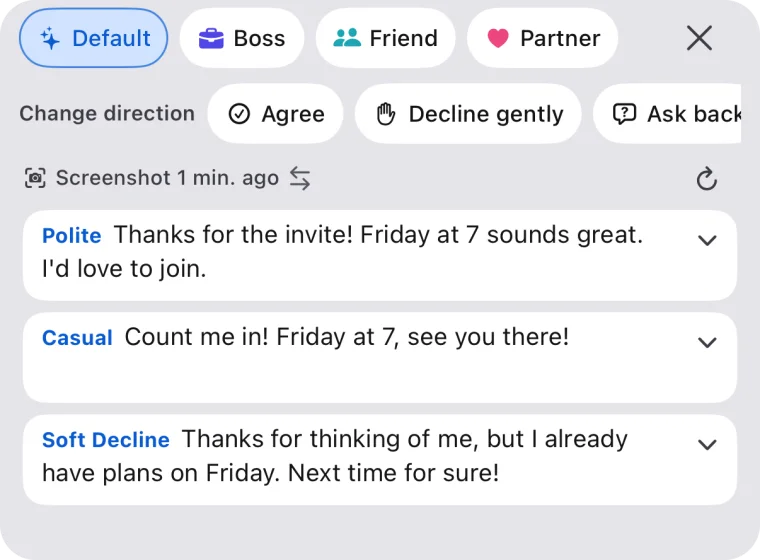
Three replies, one tap on ✦
Tap ✦ and three replies to your latest screenshot appear on one screen. Under “Change direction”, chips such as Agree, Decline gently, Ask back, Reply later, Hype it up and Say thanks steer them. Screenshots are read in your iPhone’s language plus English and Japanese. For chats in other languages, copy the message and use “Copied text”.
Tidy up what you typed or said
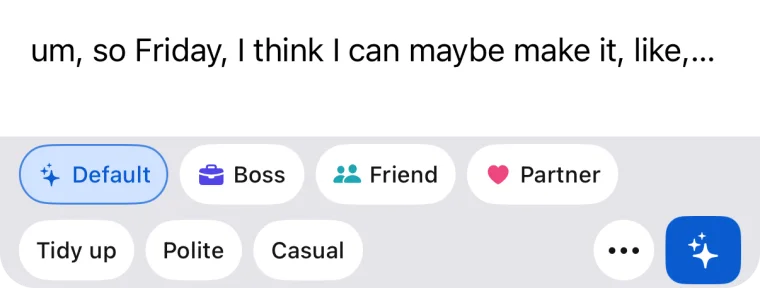
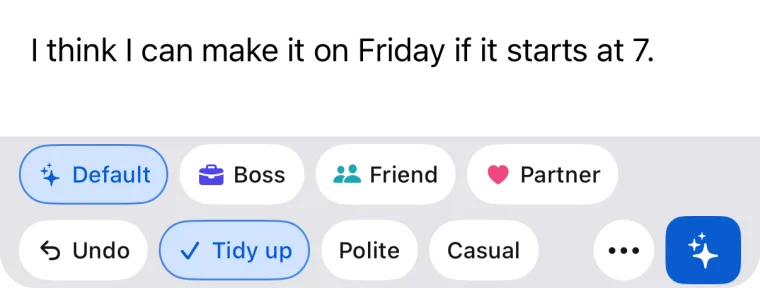
Type a draft, or speak with the iPhone’s own mic, then tap “Tidy up”. Morphy removes fillers and repetition and turns it into a natural message that fits the other person. “Polite”, “Casual”, “Gentle” and “Shorter” reshape it further. “Tidy up” is free and counts toward your 5 a day.
Or from copied text
Copy the message you want to answer and switch the source to “Copied text” to get replies without a screenshot. Replies are written in the language of the conversation.
Japanese and English keyboards
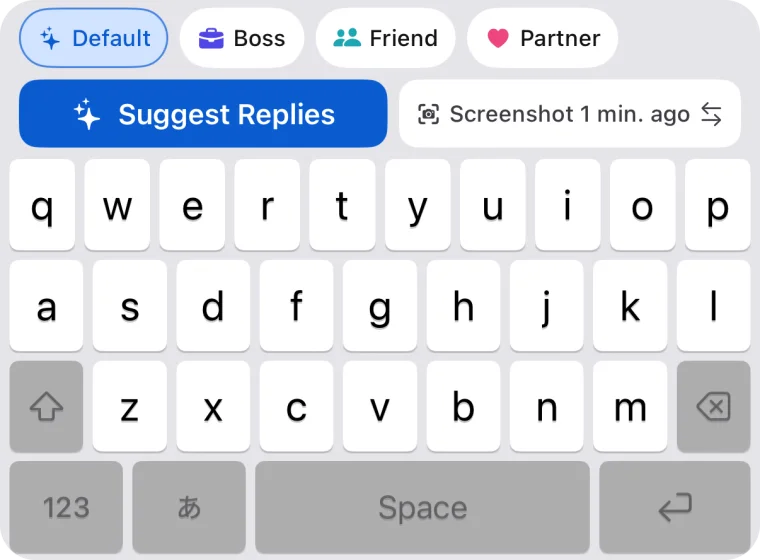
Type in Japanese (flick and romaji) or English (QWERTY). While converting, “Next” and “Confirm” are one tap away. The AI toolbar on top gives you replies, tidy-up, tone changes and translation.
Set up for how you use it, on the spot
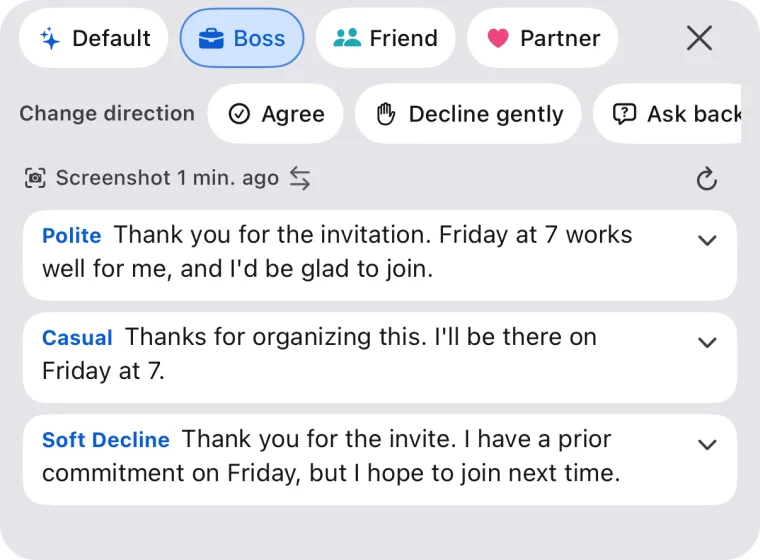
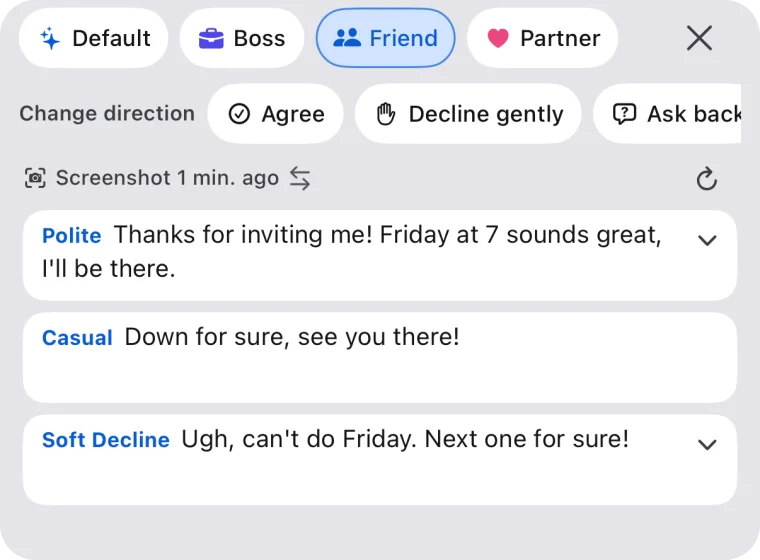
Pick what you use Morphy for (Work messages, Friends & partner, Other languages, Writing by voice) and the people and chips are set up for you. Settings are finished inside the app’s Keyboard tab, next to a copy of your own keyboard. Switch between Boss, Friend, Partner and other people right on the keyboard.
Learns your voice from LINE
Import a LINE chat history and Morphy learns how you write. It is analysed on your phone and only your own messages are used. Up to 10 learned examples of your messages are sent to the AI as a style reference when you generate replies or conversions with that preset.
Pro feature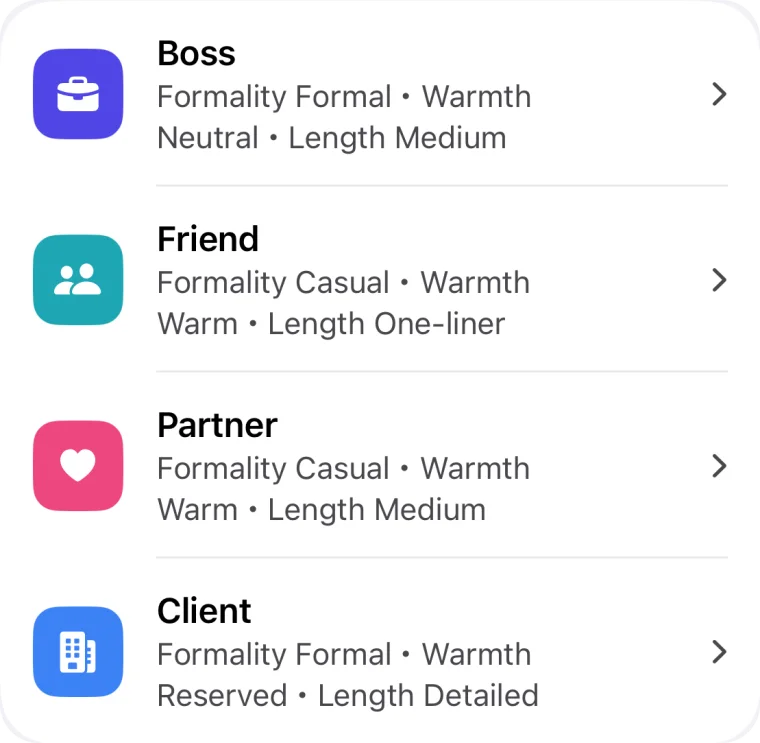
Screenshots stay on your phone
Text is read from your screenshot entirely on your device. The image itself is never sent.
- Screenshots and images are never uploaded
- Keystrokes are not recorded on a server. Only when you tap tidy up, tone change, translate or suggest replies is that text sent to the AI
- Learning for Japanese input conversion is stored only on your device
- No sign-up needed

Start for free
Try it free. Upgrade to Pro when you want more.
Free
Up to 5 generations a day
- Replies from screenshots or copied text
- Tidy up (counts toward your 5 a day)
- Japanese and English keyboards with an AI toolbar
Morphy Pro
For people who use it a lot
- Up to 100 generations a day
- Learn your voice from LINE chats
- Translate drafts into 10 other languages
- Add a 4th and 5th reply slot
Pro is an auto-renewing subscription through the App Store. You can see the price on the App Store and cancel any time in your iPhone settings.
Frequently asked questions
Are my screenshots uploaded?
No. Text is read from the screenshot on your device (OCR) and the image itself is never sent. Only the recognised text goes through our server to the AI so it can write the replies.
Is what I type recorded? Why does the keyboard need Full Access?
Writing replies with AI needs a network connection, and iOS requires Full Access for that. Morphy does not record your keystrokes on a server. Only when you tap ✦ “Suggest Replies”, “Tidy up”, a tone chip or translate is that text sent to the AI. Learning for Japanese input conversion is stored only on your device.
How do I turn on the keyboard?
Open Settings → General → Keyboard → Keyboards → Add New Keyboard → Morphy. Then open Settings → General → Keyboard → Keyboards → Morphy and turn on Allow Full Access. In a chat, switch to Morphy with the globe key. The app’s Keyboard tab also walks you through it.
What does “Tidy up” do? Can I use my voice?
It removes fillers and repetition and turns your text into a natural message that fits the other person. It also works on text you dictated with the iPhone’s own mic. “Tidy up” is free and counts toward your 5 a day together with replies.
How much can I use for free?
Up to 5 generations, conversions or “Tidy up” taps a day in total, resetting at midnight in your local time. Pro raises that to 100 a day. Learning your voice and translation are Pro features. You can see the price on the App Store.
Does it work with chats that are not in Japanese?
Yes. The app is available in 9 languages (Japanese, English, German, Spanish, French, Korean, Brazilian Portuguese, Simplified and Traditional Chinese) and replies are written in the language of the conversation. Screenshots are read in your iPhone’s language plus English and Japanese; for chats in other languages, copy the message and use “Copied text”. You can type in Japanese (flick and romaji) and English (QWERTY) on the keyboard.
Which AI does it use? Do I need an account?
Replies are written through our server by the Anthropic (Claude) and OpenAI APIs. They are listed in the Privacy Policy. No account is needed; we only use an anonymous ID to count daily usage.
No more staring at a blank reply.
Get Morphy on the App Store and try it in your next chat.
